The Interment Right page shows everything about one burial spot in your cemetery: who owns it, who is buried there, any memorials, the contracts it appears on, and any documents saved to it.
What Is an Interment Right?
An Interment Right is the right to bury someone in a specific spot. A grave space is the physical space, and an Interment Right is one burial “slot” inside that grave space.
Many grave spaces have only one Interment Right. Some have more than one. For example, a grave might have a casket burial plus one or two cremation burials, or a double-depth grave might have one burial on top of another. Each of those burials is its own Interment Right, with its own owner, deceased, and history. To learn how to add more than one, see How to Add an Additional Burial Right to a Grave.
Step 1
Step 2
In your search results, click the number under the “Interment Right” column. This opens the Interment Right page.
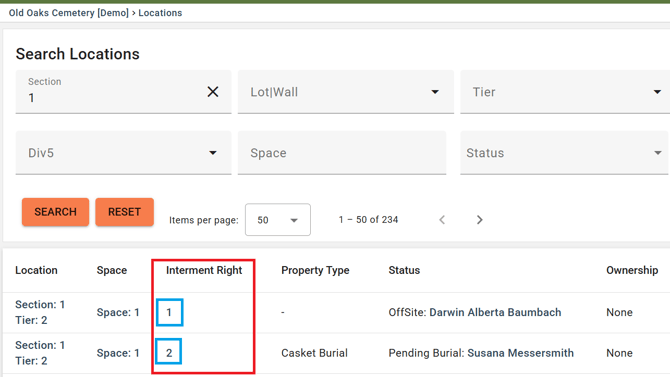
You can also reach this page from the Grave Space Details page or theLocation page by clicking on the "Interment right" number.
Step 3
The Interment Right Page
Details
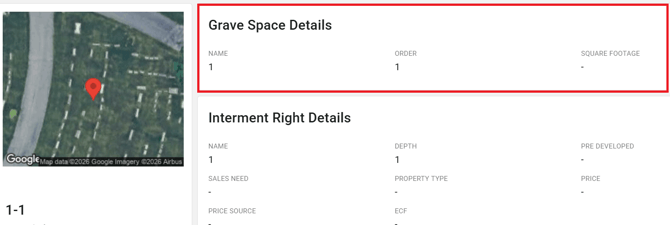
At the very top you'll see the details of the Grave Space the Interment right belongs to.
Right below that shows the basic details of the Interment Right, such as its name, Property Type, its depth, and its status (for example, Available, Sold, Occupied, or Do Not Use). You can even add a comment for important information.
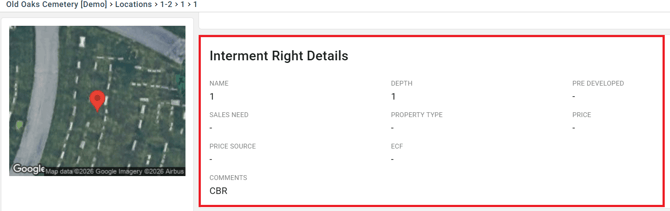
To change any of these details, see How to Update Depth, Price and other Grave Details.
Ownership
The “Ownership” section lists everyone who has a stake in this Interment Right, such as the owner, a co-owner, or a beneficiary. Click a person’s name to open their Owner Profile.
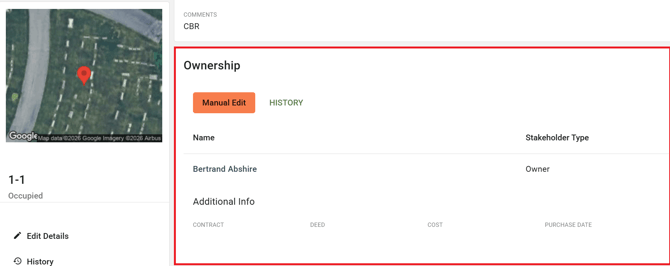
To make changes, see How to Add (or Update) a New Ownership Stakeholder to a Location or How to Remove an Owner from a Location. Not sure which role to pick? The Guide to Stakeholder Roles explains each one.
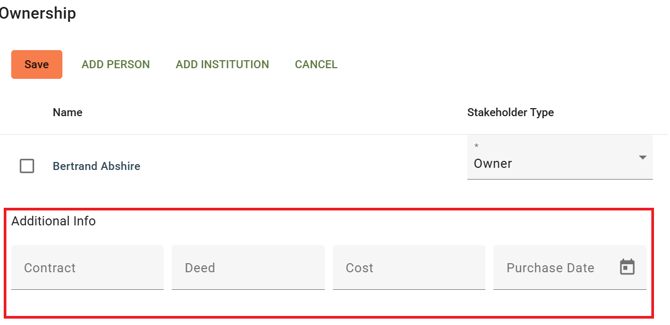
After ownership is added, selecting "Manual Edit" again allows you to add purchase details like the Contract, Deed, Cost and Purchase date of the property:
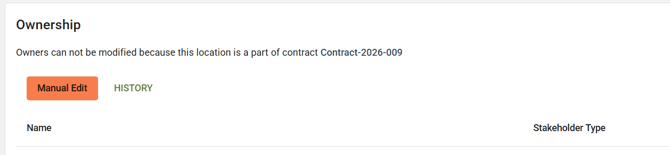
If the property is Reserved, or Under Contract, you'll see this listed above the Ownership Card, and the property cannot be modified unless removed from the Contract or Reservation.
Decedent
The “Deceased” section shows who is buried in this Interment Right. Click the name to open the Deceased Record.
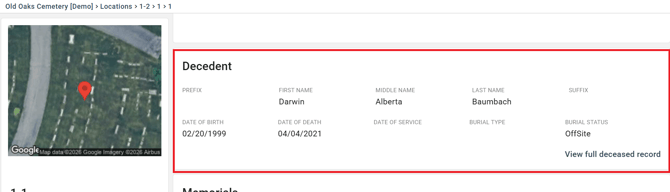
To add someone, see How to Add a Decedent to a Location. If a deceased needs to be moved, see How to Transfer a Deceased Record to a New Location or How to Disinter a Deceased Record from a Location.
Memorials
The “Memorials” section shows any headstone, marker, or other memorial placed on this Interment Right.
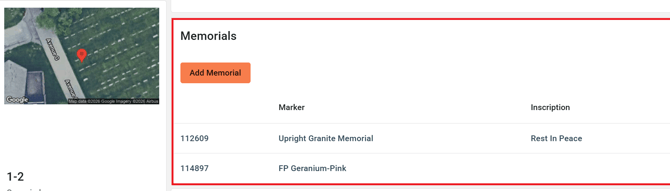
To add one, see How to Add a Memorial to a Grave/Burial Right.
Contracts
The “Contracts” section lists every contract connected to this Interment Right. This includes:
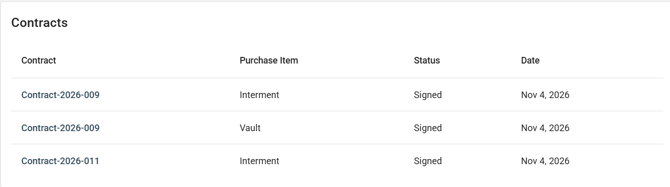
- Contracts that sold the space itself, such as the original purchase of the grave.
- Merchandise and service contracts that reference this space, such as a later contract for a vault, marker, or opening and closing. These show up even though the space was not sold on that contract. To learn how a space gets referenced on a merchandise contract, see How to Reference Non-Contract Locations on a Merchandise Contract.
Documents
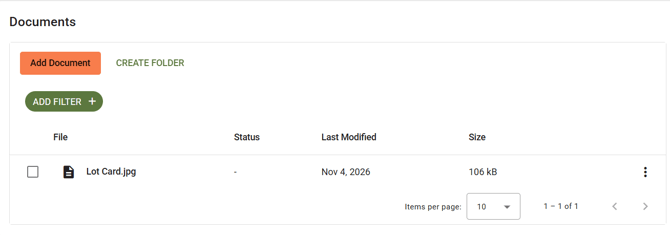
The “Documents” section at the bottom of the page holds any files saved to this Interment Right, such as a signed deed or a burial permit. Click “Add Document” to upload a new file. See How to Add Documents to a Location and How to View Documents in Management.
More Options
Under the Map Preview:
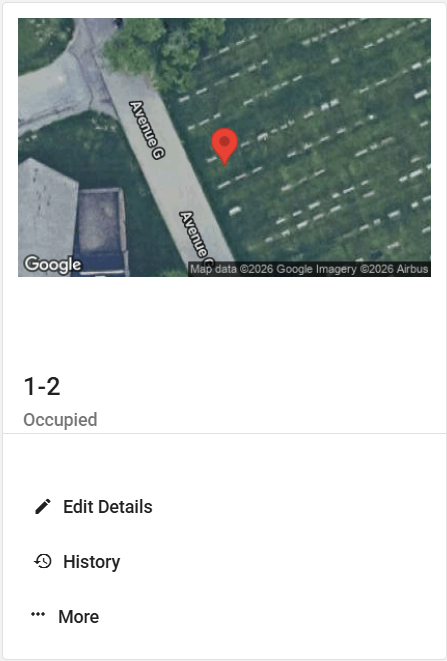
History shows every change made to this Interment Right, who made it, and when. See How to View the History of a Grave/Burial Right.
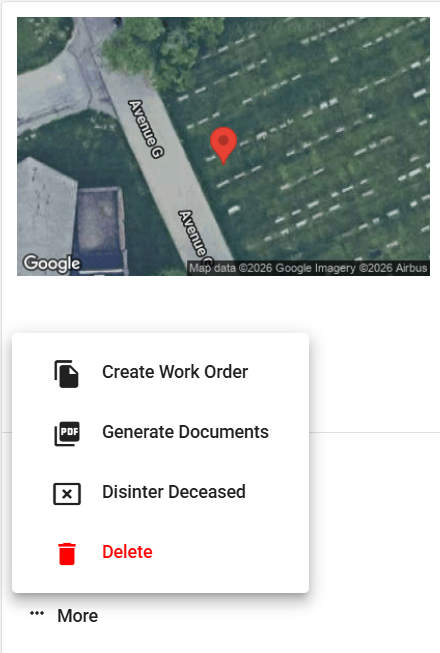
More:
-
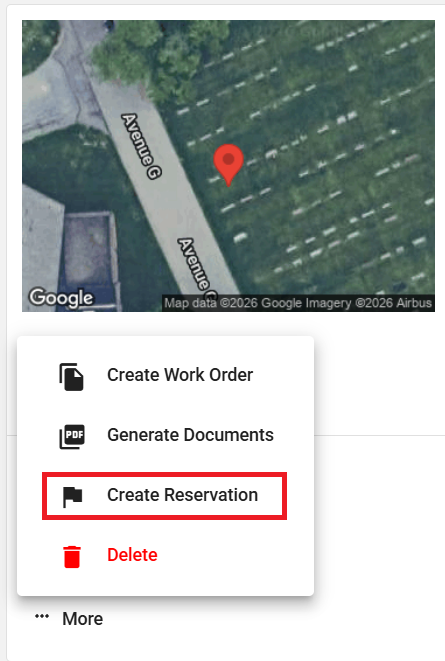
Create Work Order creates a work order which includes this interment right automatically.
-
Generate Document creates a form, like a deed, filled in with this Interment Right’s details. See Generating a Dynamic Form Document from an Interment Right.
- Disinter Deceased to remove a decedent from this Burial Space.
- Delete to delete this entire Interment Right.
- You'll need to remove any decedent's first, and cancel any contracts it is connected to.
- Create Reservation only available if there's no Decedent or Owner and if the property isn't already part of a Contract or Reservation.