
Step 1
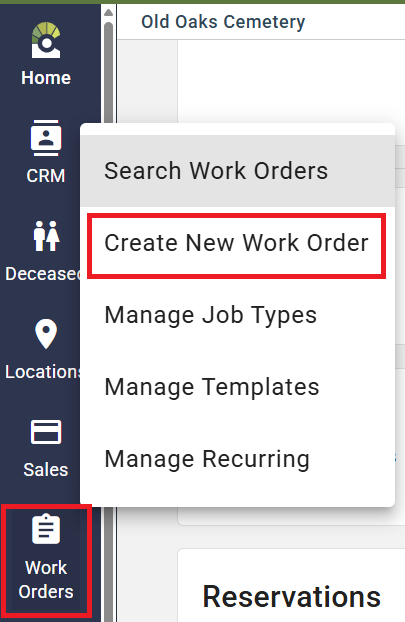
Hover over "Work Orders" on the left side menu and click "Create New Work Order".
-
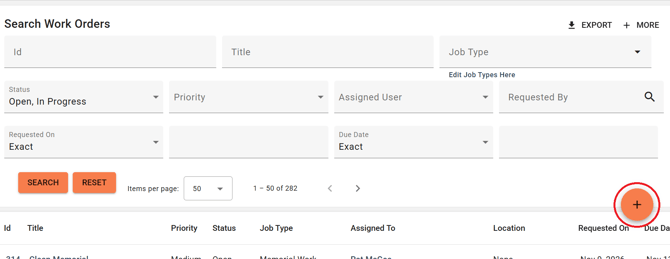
Alternatively, if you're in the Work Order's Search, to create a new work order, click the Orange circle with the plus sign at the bottom right corner before the search results list.
Step 2
Fill in the Details of your Work Order:
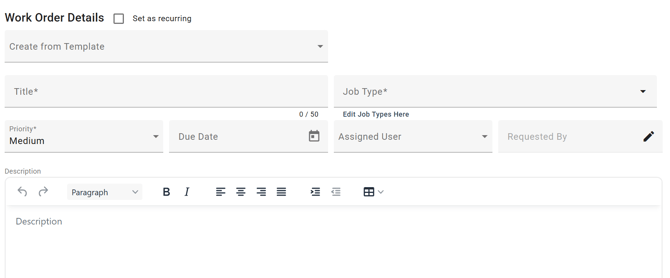
You can use a Template to speed up the process for common Work Orders.
You can also "Set as Recurring" to automate the creation of Future Work orders.
- Title* The name of the Work Order.
- Job Type* The type of Job the work order is for. These are required in order to create a Work Order,click here to learn how to create and manage them.
- Priority* The urgency of the Work Order, ranging from Very Low to Immediate.
- Due Date The date the Work Order needs to be completed by.
- Assigned User the user who will work on this Work Order, they will be notified once assigned.
- Requested By who requested this Work Order. Can be a Customer or a User in the Cemetery.
- Description A description of the Work Order and any Additional Details.
* = Required fields.
Step 3
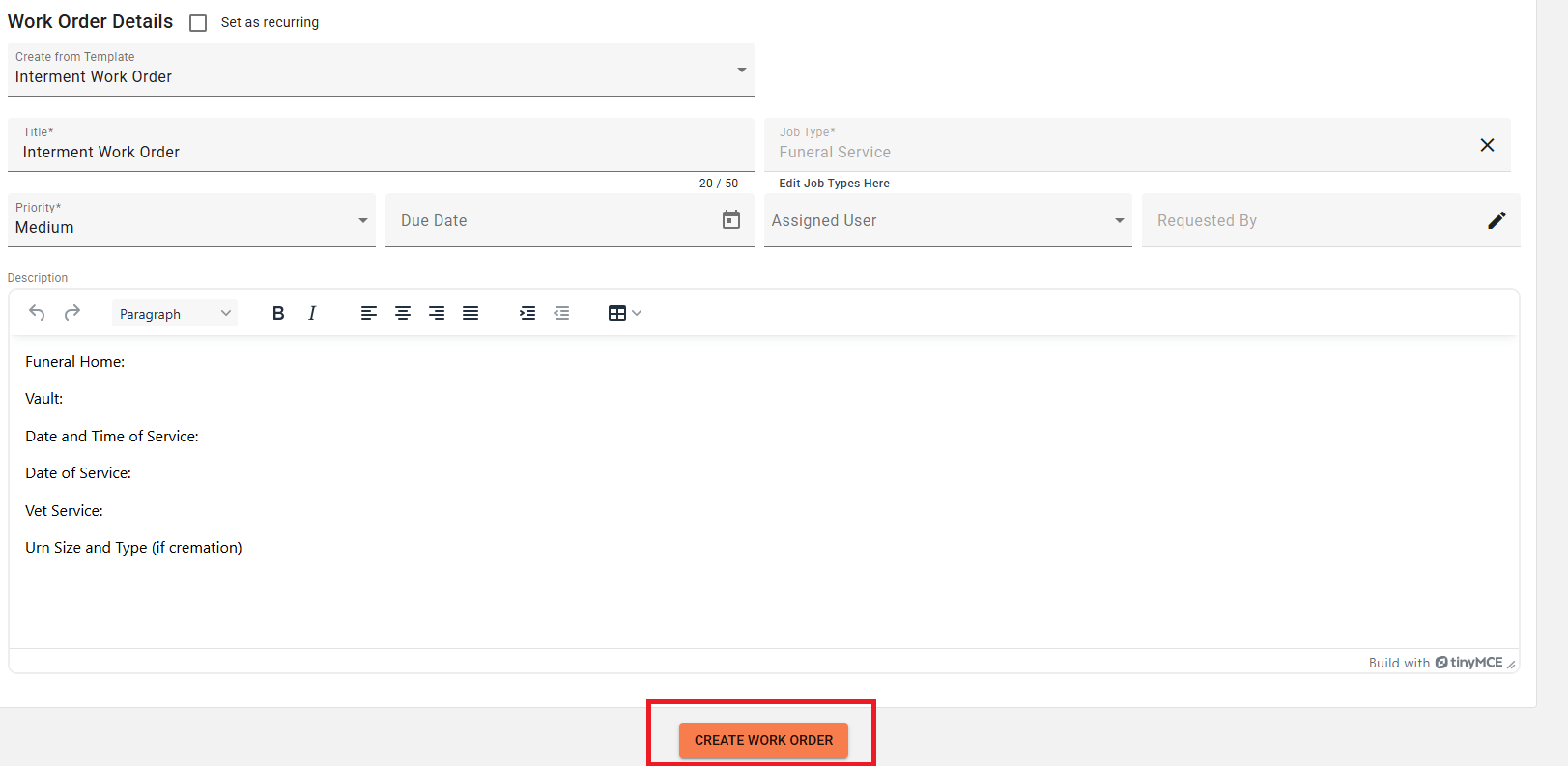
Once you have added at least a Title, Job Type and Priority, click "Create Work Order" at the bottom.
Step 4
Click here to see how to:
How to add Watchers to a Work Order
Update the status of a Work Order