---
title: How to Edit a Work Order
description: Make changes to a work order and immediately update your grounds crew.
---
[Skip to content](https://support.webcemeteries.com/hc/en-us/articles/5820934472091-how-to-edit-a-work-order#main-content)
[Submit a Request](https://support.webcemeteries.com/kb-tickets/new?hsLang=en)
[](https://support.webcemeteries.com/?hsLang=en)
Open main navigation
Close main navigation
- [Submit a Request](https://support.webcemeteries.com/kb-tickets/new)
How can we help you?
- There are no suggestions because the search field is empty.
1. [webCemeteries Knowledge Base](https://support.webcemeteries.com/?hsLang=en)
2. [Management](https://support.webcemeteries.com/management?hsLang=en)
3. [Work Orders Module](https://support.webcemeteries.com/management?hsLang=en#work-orders-module)
# How to Edit a Work Order
### Step 1
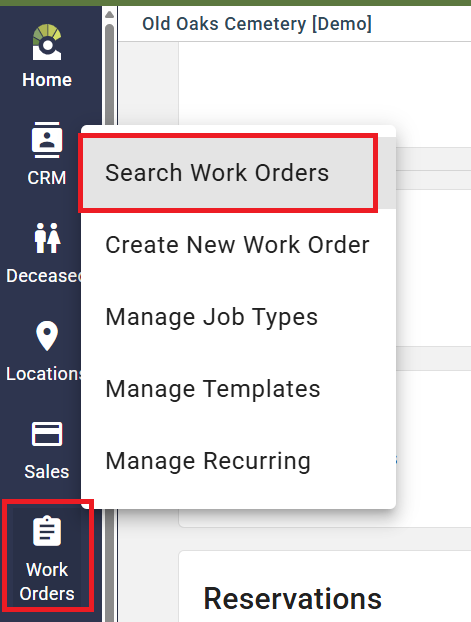
[Search for the Work Order.](https://support.webcemeteries.com/hc/en-us/articles/5820923350555-how-to-search-by-work-order-details?hsLang=en)
### Step 2
Click on the work order you wish to edit.

### Step 3
To edit the details of the work order, click on "Edit Work Order" on the left side with the pencil icon. You can also [add a location, deceased, or tree(s) to a work order](https://support.webcemeteries.com/hc/en-us/articles/5820894495899-how-to-add-a-location-deceased-or-tree-s-to-a-work-order?hsLang=en).

### Step 4
Enter or edit the fields as needed (Description, Job Type, Status, Priority, Assigned User, Requested By, or Due Date). Make sure to click SAVE to not lose any information before navigating away from the page.

### Step 5
Once the information has been saved it will appear in the Details portion of the Work Order.
[](http://webcemeteries.com)
277 Fair St., Suite 1, Kutztown, PA 19530
[mailto:support@webcemeteries.com](mailto:support@webcemeteries.com)
Copyright © 2027, webCemeteries ™