
Invoices are currently in beta. Please note that functionality may change, and issues or inaccuracies may occur as we continue to develop this feature. Please review all invoice data carefully before use. We welcome your feedback as we continue to improve.
Step 1
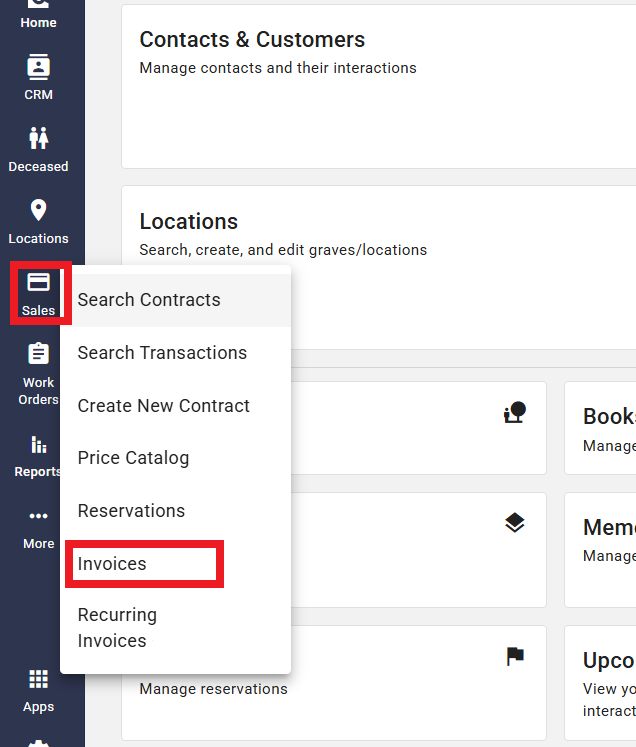
Access the invoice search by going to Sales > Invoices, on the left side menu.
Step 2
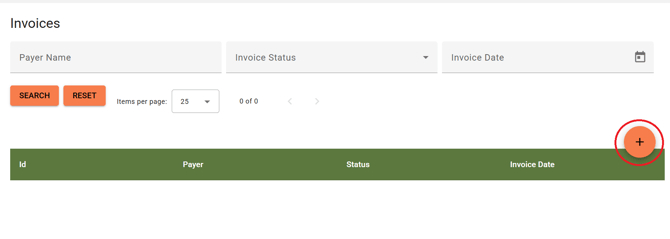
Select the Orange "+" button to create a new Invoice
Adding a Payer
Every Invoice must have a payer who will be paying for the Merchandise/Service.
Step 1
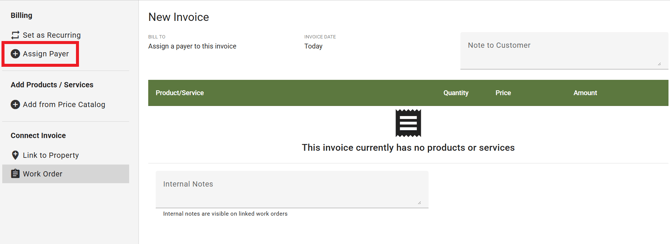
In the invoice creation screen, start by assigning the payer of the invoice. Select "Assign Payer" on the left.
Step 2
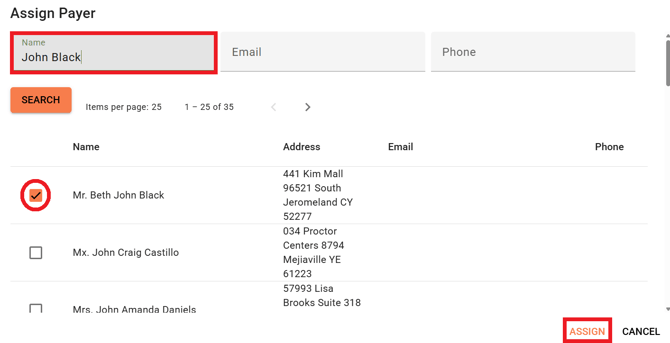
Enter the contact information to filter your search, then, select the contact that will be paying this invoice and click "Assign".
-
You'll see their information under "Bill to".
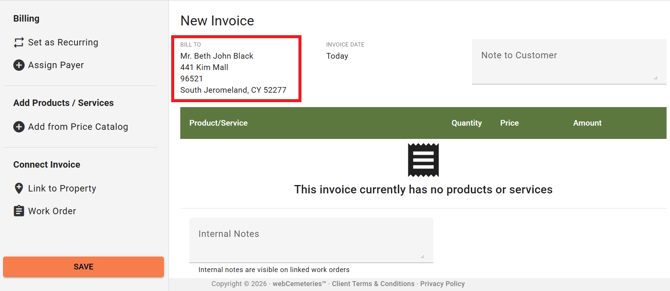
- If you need to change the payer, simply select "Assign Payer" again to replace the current one.
Step 3
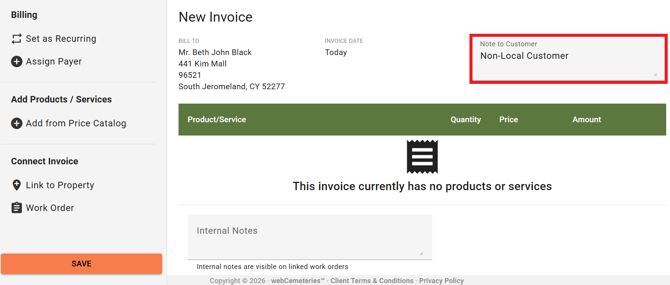
Adding a "Note to Customer" will appear in the Invoice Report.
Adding Products / Services
Step 1
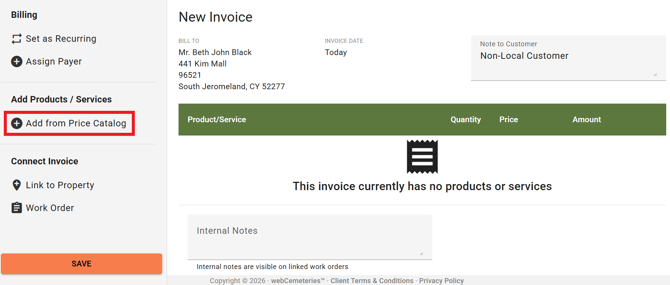
Select "Add from Price Catalog" to add a Merchandise or Service item from your Price Catalog.
Step 2
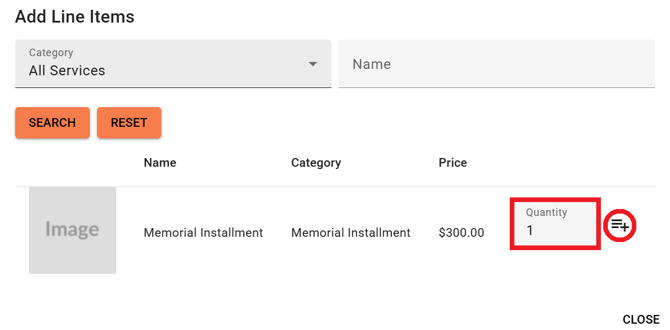
Filter your search, and then select the  Icon to add the item to the invoice. You can adjust the quantity of the item that you're adding, or, select the
  icon again to add it another time.
-
The item will be attached to the invoice with it's price total.
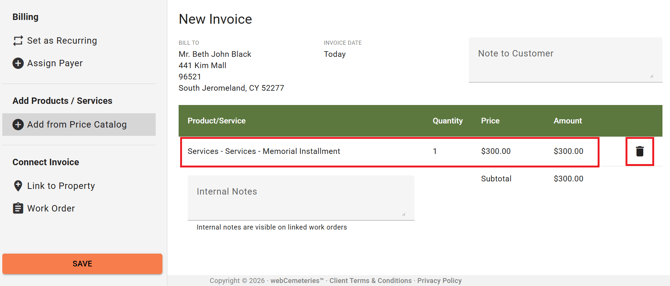
- You can unlink the item by selecting the Trash bin Icon
 .
.
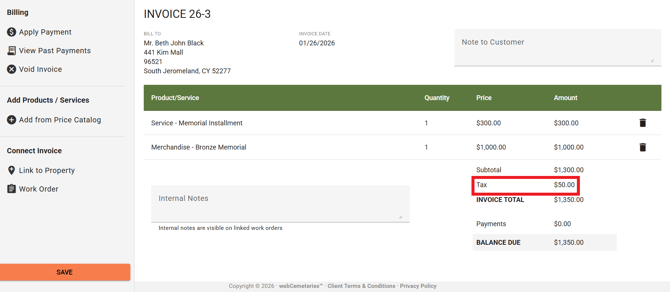
Once you save the invoice, if you have an active Tax Rate, any taxable item added to the invoice will also calculate Taxes:
 +6
+6
Step 3
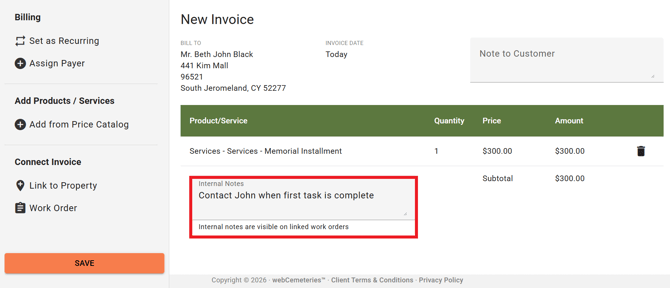
Add any Internal Notes to the invoice. This will only be visible on linked Work Orders.
Connect Invoice
Invoices can be linked to Properties or Work Orders. Linking a property to an Invoice will also add that property to a Work Order, if you choose to create a Work Order when the invoice is Paid in Full.
Link to Property
Step 1
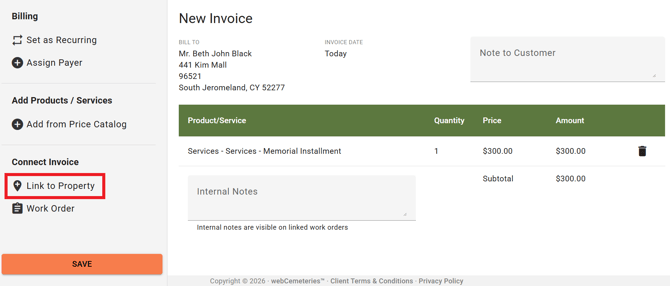
To link a Property to the invoice, select "Link to Property".
Step 2
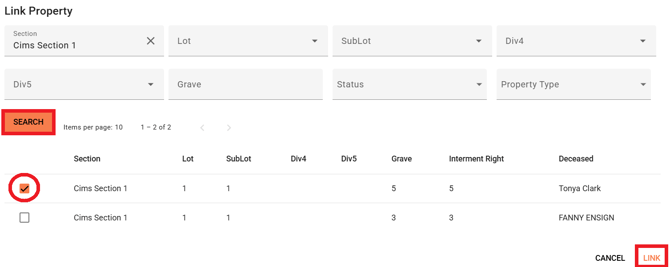
Filter your search, and select "Search". Select the Check Box next to the property you want to link to the invoice, and press "Link".
-
The property will now be linked to the invoice. You can select the "Property" link to visit the location.
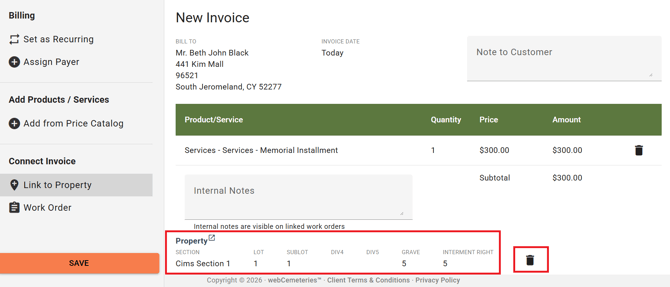
- You can unlink the property by selecting the Trash bin Icon.
Link to Existing Work Order
Step 1
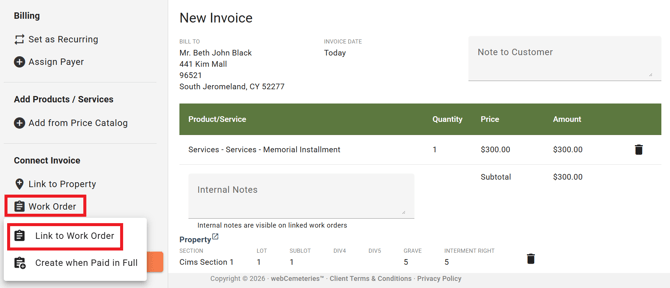
Select "Work Order" > "Link to Work Order" on the left.
Step 2
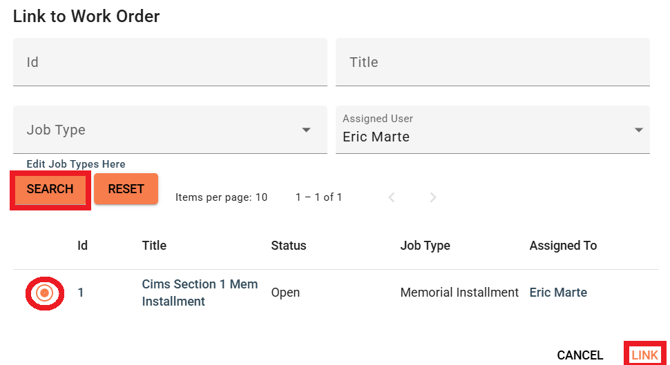
Filter you search to find the Work Order you want to link to, select the circle next to the work order, and select "Link".
-
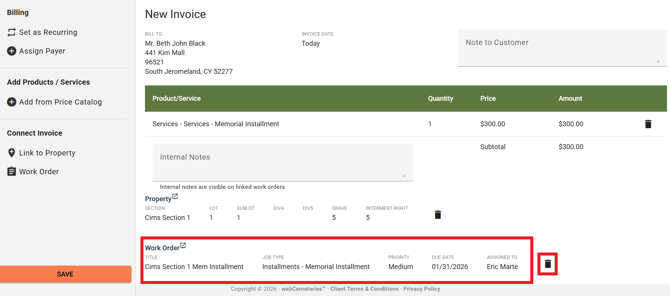
The Work Order will now be linked to the Invoice. You can visit the Work Order by selecting the Work Order link.
-
You can unlink the Work Order by selecting the Trash bin Icon
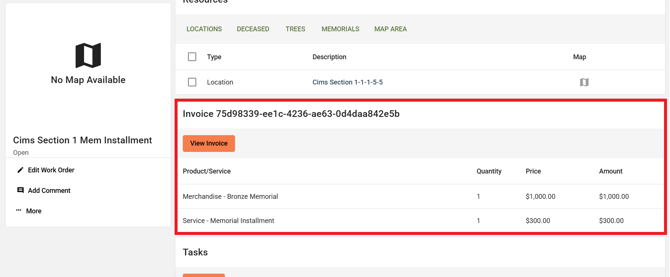
. - Once you save the Invoice, you can find it in the invoice section of the Work Order.
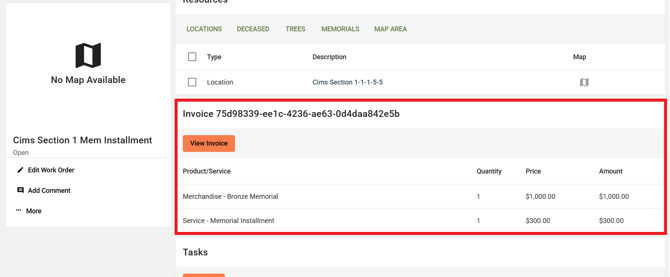
You cannot link an invoice to a Work Order that already has an invoice assigned.
Save the Invoice
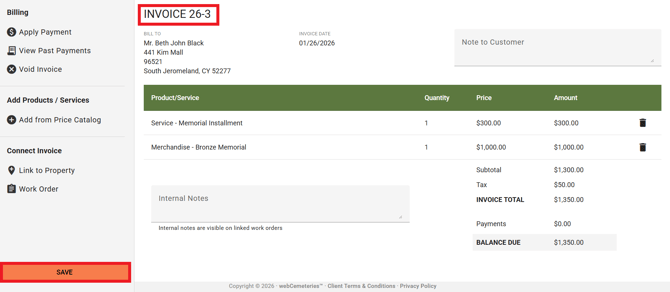
Finally, once all the details have been added, select the "Save" button to create the Invoice.
-
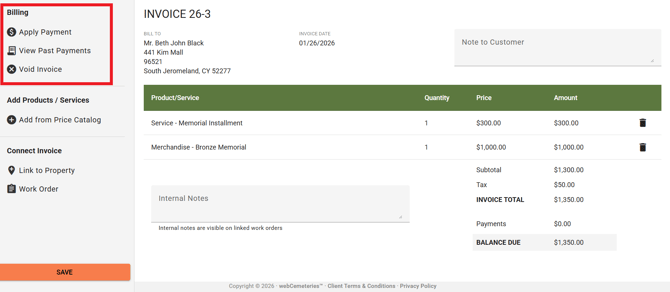
You will now be able to Apply Payments, View Payment History, or Void the Invoice to Cancel it.
- If you linked to a Work Order, the invoice will now be shown in the Work Order Invoice section.
You cannot Void an Invoice if it has payments applied to it.
Check out these articles for: