
When a deceased record is linked to Passare, you will see a Passare sync icon ( ) next to any fields that are actively syncing.
This article explains how syncing works, how to manage Events and Contacts, and what happens when updates are made in either system.
Step 1
Search for and open the deceased record
Step 2
Look for the Passare sync icon () next to fields to confirm the record is linked.
You can also select this icon to open and view the associated case in Passare.

How Syncing Works
Once a record is linked:
- Updates made in Passare will automatically sync to webCemeteries
- Synced fields in webCemeteries will be overwritten by new Passare data
- Updates made in webCemeteries do not sync back to Passare
Example:
If you update the Date of Birth in Passare, that change will automatically update the Date of Birth field in webCemeteries.
Synced Fields
The following sections (cards) can receive data from Passare:
- Name
- Dates
- Address
- Services (Events)
- Contacts
- Obituary
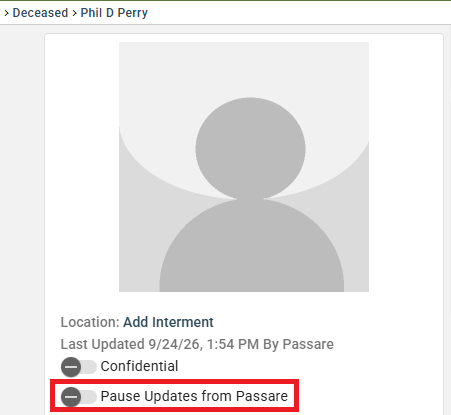
Pausing all updates from Passare
You can pause all updates from Passare for a record via the toggle under the decedent's profile picture:
Managing Services (Events)
Services are where events synced from the Passare case will appear in webCemeteries and can be managed.
Syncing Events

When you initially link the Case from Passare to webCemeteries, you can select to Automatically sync all events from Passare:
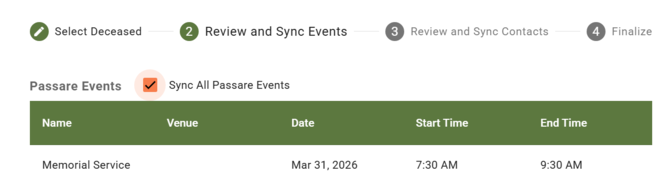
If you did not select this option, you can manually sync events instead:
- Navigate to the Services section in the deceased record
- Locate events that are available from Passare but not yet synced
- Select Sync Event

Once synced:
- The event will appear in the record
- A Passare sync icon will display next to the event

Syncing Events will create new Event Types automatically, if a matching one was not already in webCemeteries.
Unsyncing Events
To stop syncing an event:
Select the Unsync icon ( ) next to the event
The event will remain associated with this deceased but it will no longer be kept up to date with changes in Passare. Select "Yes" to confirm:

After unsyncing:
- The event remains on the record
- It will no longer receive updates from Passare
- You can edit or delete it freely

You can re-sync an event at any time, as long as it exists in Passare.
Contacts
First add Family and Friends in Passare:

Similar to Events, when you initially link the Case from Passare to webCemeteries, you can select to Automatically sync all contacts from Passare:

If not, you can manually sync them:
- Go to the Contacts section in the deceased record
- Find contacts available from Passare
- Select Sync Contact

This will create a new Contact in your CRM. If the contact was marked as Next of Kin or Informant in Passare, this will also sync over to webCemeteries.
If a contact is syncing from Passare, you'll see the Passare ( ) symbol next to that contact.

Unsyncing Contacts
To stop syncing a contact:
Select the Unsync icon () next to the contact:

The contact will remain associated with this deceased but it will no longer be kept up to date with changes in Passare. Select "Yes" to confirm:
After unsyncing:
- The contact remains linked to the deceased record
- It will no longer update from Passare
- You can edit or delete it as needed

Important Note on Duplicates
If you re-sync a contact, or sync the same contact to another deceased record, a duplicate contact may be created in your CRM.
To resolve this:
- Use the Merge feature to combine duplicate contacts
- This helps prevent duplicate entries and keeps your data clean
For instructions on linking records, refer to the article on setting up and linking Passare cases.