
In This Article...
You'll learn how to create, update, and delete books and their pages.
Create a Book
A book holds records that belong together, such as a multi-year volume of cremation records. Each page can be linked to many deceased records and locations, and any change to the page appears everywhere it's linked. (See How to Link and Unlink Book Pages.) To create a book:
- In the left-side menu, hover over ...More and select Books.
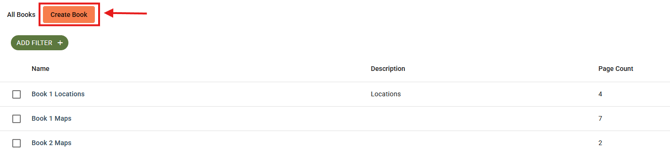
- Select the orange Create Book button at the top of the screen.
- Enter a Name, which is required, and an optional Description.
- Select SAVE.
The book opens automatically.
Manage Books and Pages
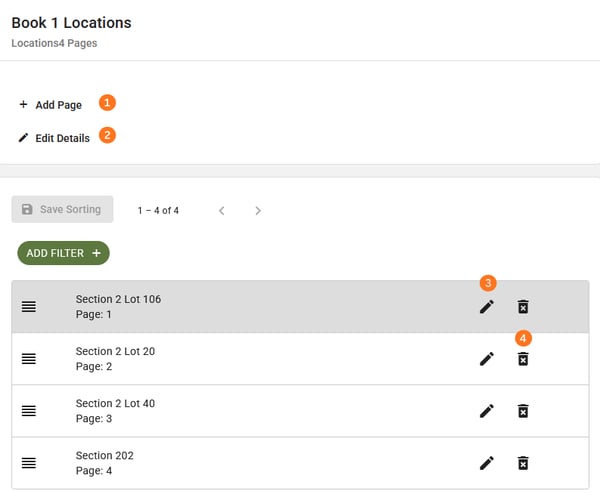
Add and View Pages (1)
If you just created the book, start at step 1. To add pages to an existing book, first hover over ...More in the left-side menu, select Books, and then open the book.
- Select + Add Page.
- Enter the page's name and page number, and then select SAVE.
- In the list of pages, select the page you just created.
- Select the pencil icon.
- Select the white box to choose a file from your computer, or drag the file into the box.
- Select SAVE.
The page appears in the book's list of pages. Repeat these steps for each page.
To view a page, select it in the list. To see a larger version, select the orange OPEN IN TAB button in the bottom right of the image.
📖 Note: Each page file can be up to 5 MB.
Update a Book (2)
- Open the book.
- Select Edit Details next to the pencil icon in the top left.
- Update the name or description.
- Select SAVE.
Edit or Replace a Page (3)
You can change a page's name or number, or swap in a new image, such as an unredacted copy. Any deceased records and locations linked to the page stay linked. To do this:
- Open the book, and then select the page.
- Select the pencil icon.
- Change the name or page number, or replace the image: select the white box to choose a new file, or drag the file into the box.
- Check the preview, and then select SAVE.
Delete a Page (4)
- Open the book, and then select the page.
- Select the trash can icon.
- Select YES to confirm.
⚠️ Caution: Deleting a page that is linked to a location or deceased will unlink that page and it will no longer appear on that record.
Delete a Book
- In the left-side menu, hover over ...More and select Books.
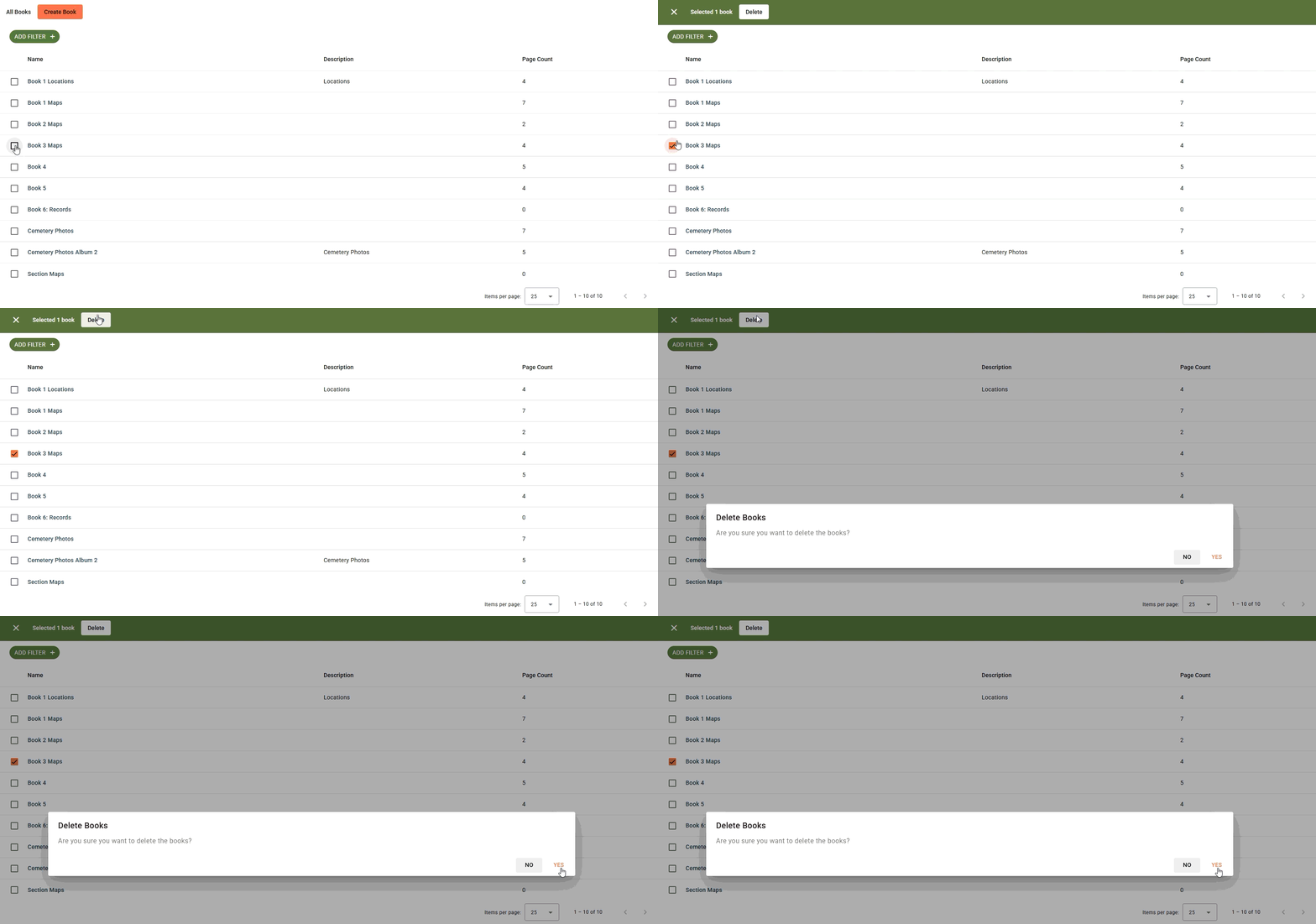
- Select the checkbox next to the book you want to delete. A green banner appears at the top of the page with a Delete button.
- Select Delete, and then select YES to confirm.
⛔ Warning: Deleting a book deletes all of its pages and removes them from any linked deceased records and locations.