
In This Article...
You'll learn how to link a book page to deceased records and locations, and how to remove a link.
Open a Book Page
- In the left-side menu, hover over ...More and select Books.
- Open the book, and then select the page you want to link or unlink.
Link a Page to a Deceased Record or Location
- In the Deceased or Locations section of the page, select the green ADD LINK button.
- Search for the record: enter the deceased's first or last name, or the location's details, and then select SEARCH.
- Select the link icon beside the record you want and then select CLOSE.
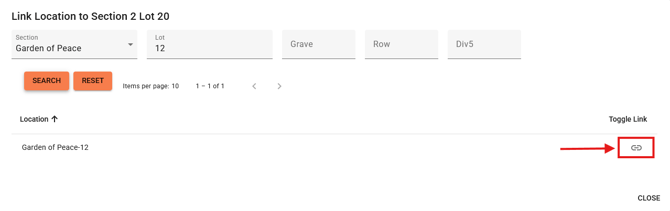
- To link more records, select the orange Link Deceased or Link Location button above the existing links, and then repeat steps 2 and 3.

The record appears on the book page, and the book page appears in that record's documents. There's no limit to how many deceased records and locations you can link to a page.
Unlink a Page
- In the Deceased or Locations section of the page, select the checkbox beside the record. A green banner appears at the top of the section.
- In the green banner, select Unlink.
- A confirmation window appears. Select YES to confirm.
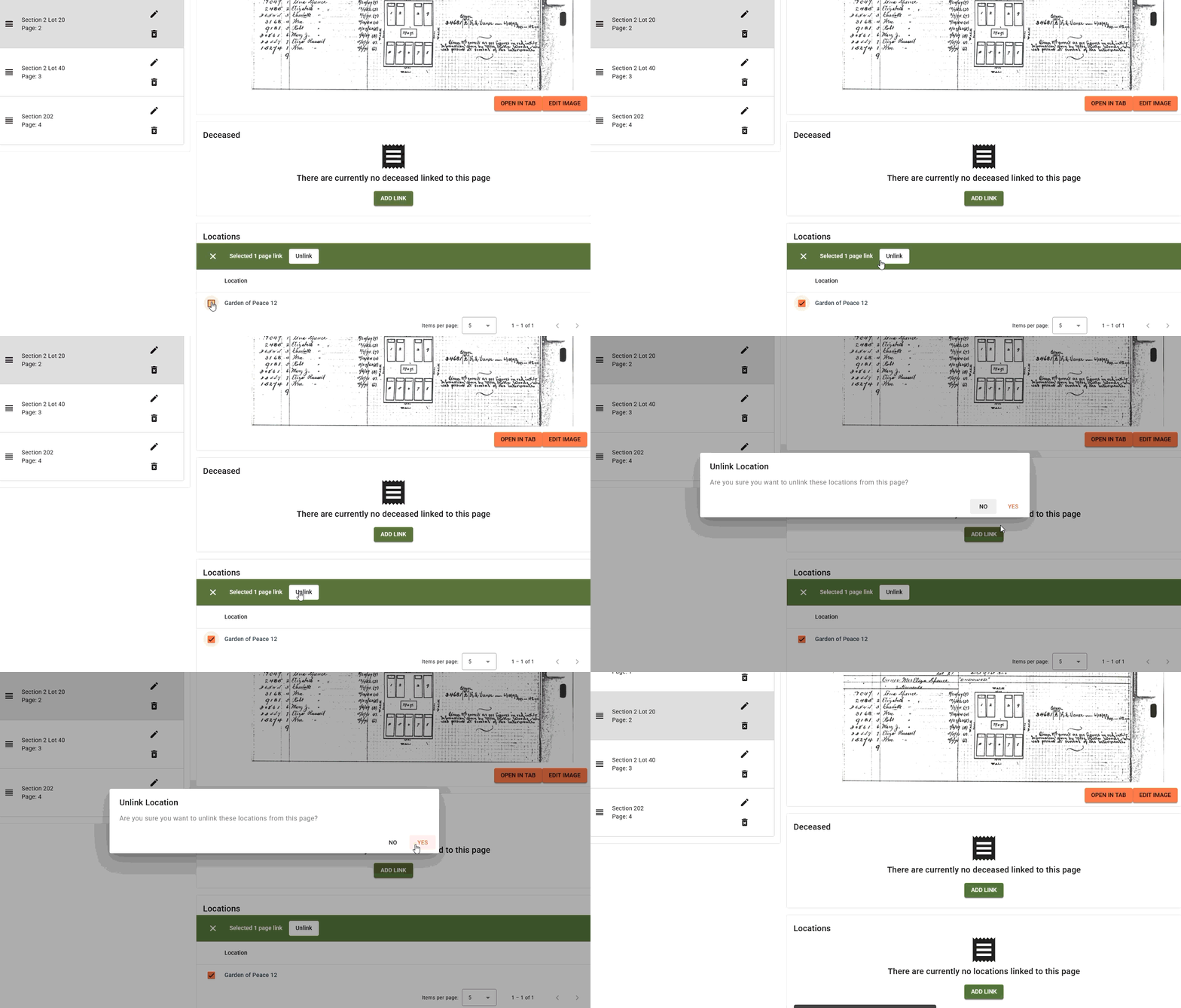
The record no longer appears on the book page, and the page no longer appears in that record’s documents. The record itself isn’t deleted.