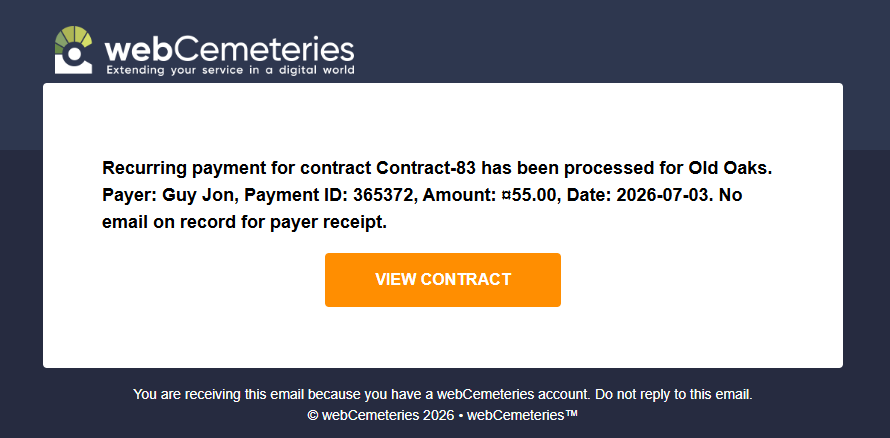
Your cemetery can receive an email automatically whenever:
- A recurring payment fails (for example, a family's card is declined for a scheduled payment on a contract), or
- A payment succeeds, so you get an emailed confirmation.
This means you no longer have to log in and check payment status every day. The system will tell you right away if something needs your attention.
Here's how to set this up.
Step 1
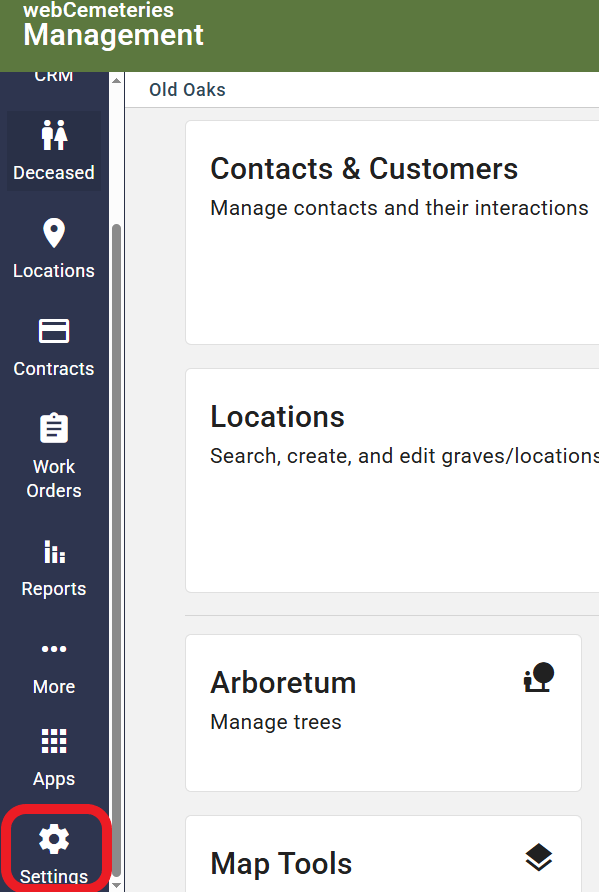
Click the Settings icon at the bottom of the left-hand menu.
Step 2
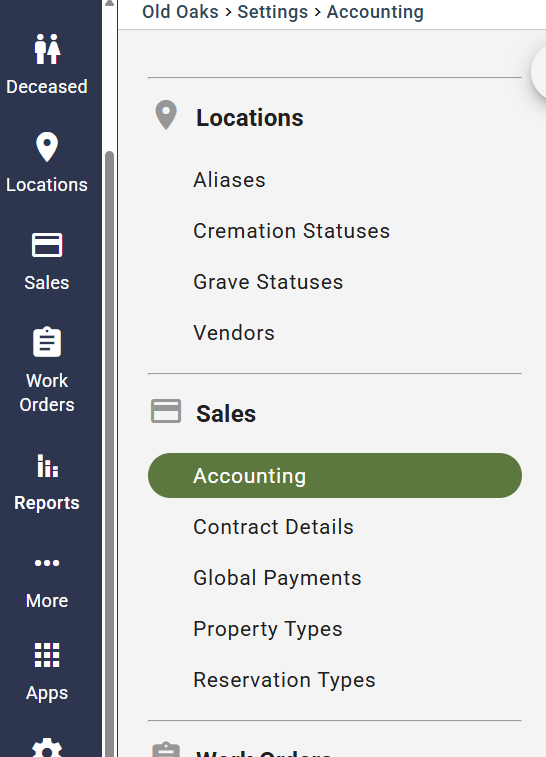
Under Sales, select "Accounting".
Step 3
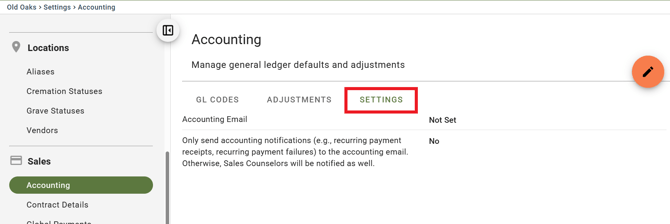
Select the "Settings" tab.
There are two groups of people who can get these notifications:
- The email address(es) you set up specifically for this. This could be your bookkeeper, office manager, or a shared office inbox.
- Sales Counselors — by default, every Sales Counselor tied to a contract will receive these emails.
Adding Emails
Select the orange Pencil icon ( ) on the top right to begin adding the email recipients.
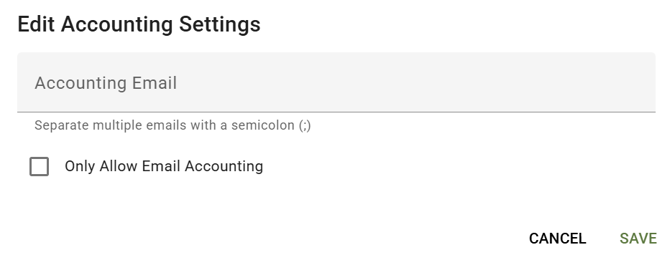
- You can add multiple email addresses by separating them with a semicolon, example:
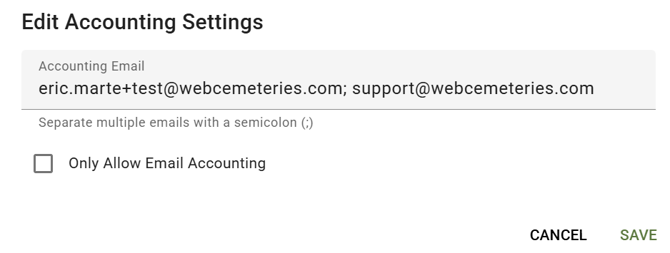
-
Decide Whether Sales Counselors Should Also Get These Emails
By default, Sales Counselors tied to a contract will automatically receive these payment emails too.
If you want to stop this, so that only the email address(es) you entered receive notifications check the box labeled:
"Only allow email accounting"
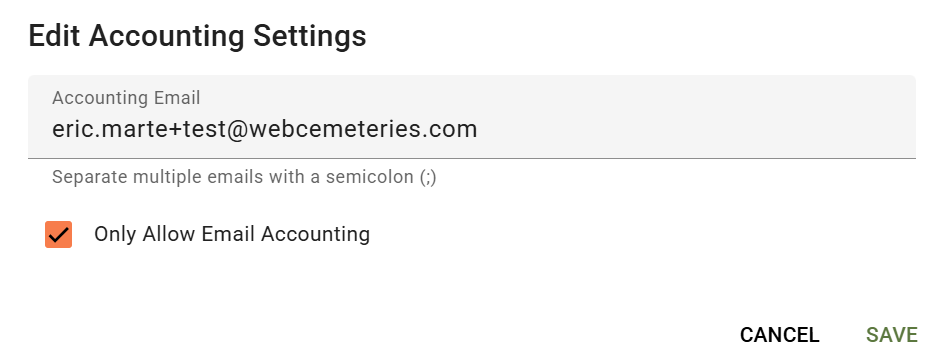
- Select Save once you're done.
Once a recurring payment attempt either succeeds, or fails, emails will be sent out according to your settings.
Each email includes:
- The Contract ID
- The payment amount