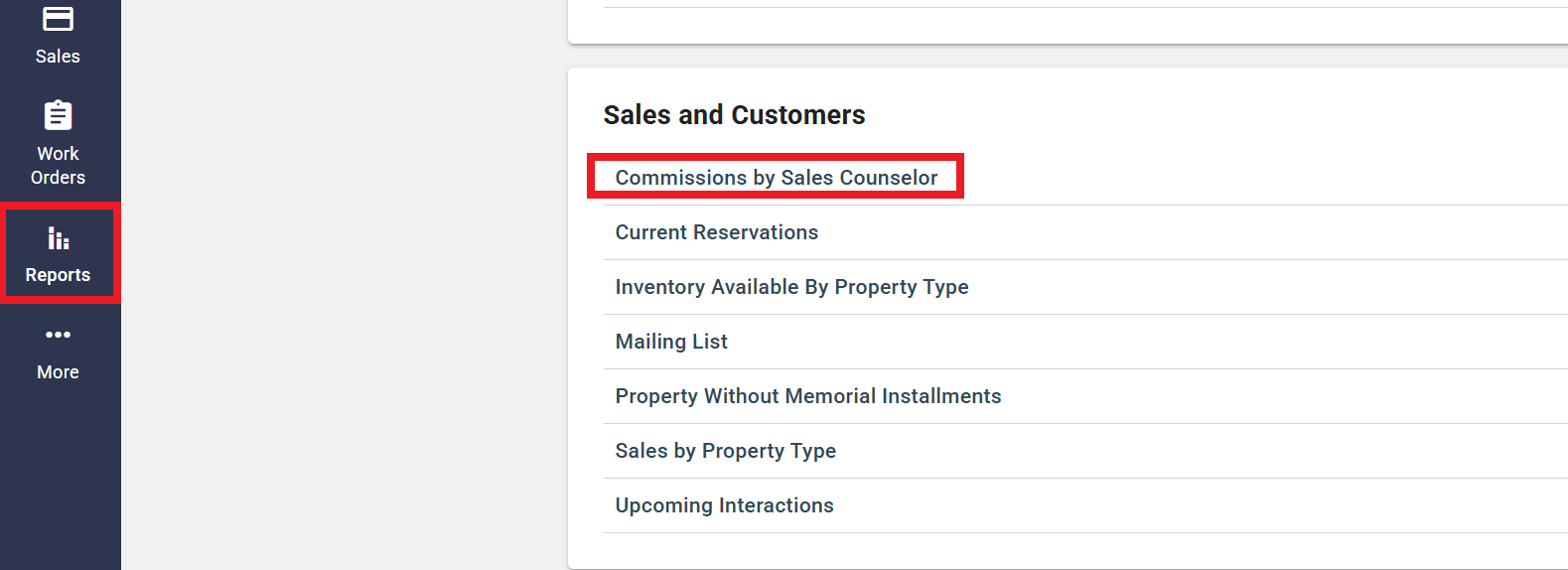
Sales Counselors may earn income via commission from sales of Merchandise or Service items. Here's how to setup Commission in your Price Catalog so each Sales Counselor's commissions can be easily tracked using the Commissions by Sales Counselor report.
Step 1
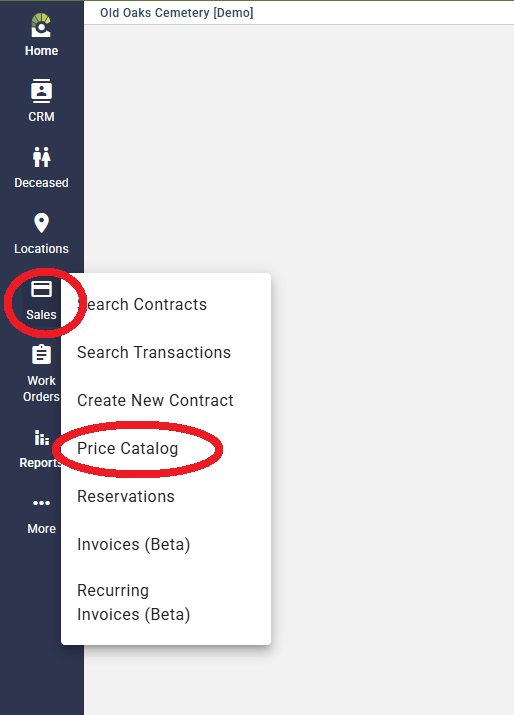
Hover over the "Sales" icon on the left side menu and select "Price Catalog"
Step 2
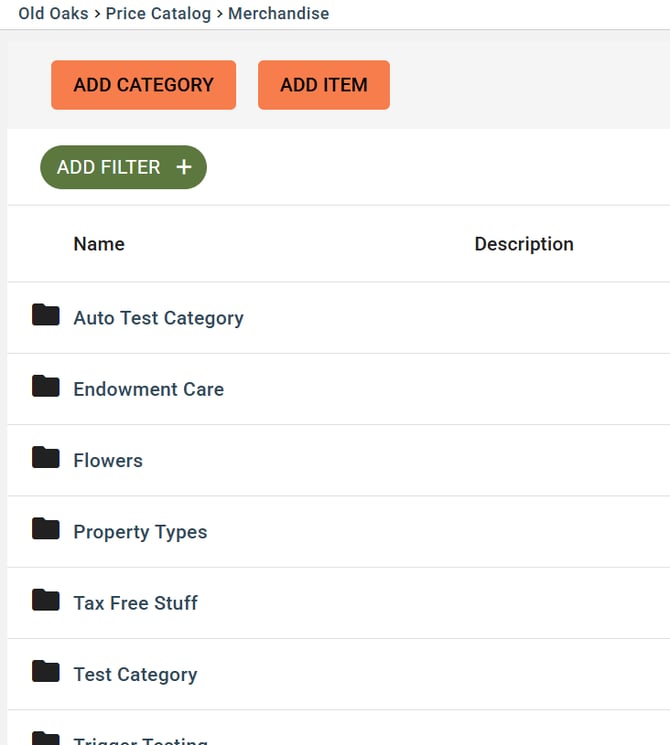
Select the Merchandise or Service Category.
Step 3
Adding Commission can be done in 2 ways: Via the Category, or on the individual item.
When adding Commission to the Category, all items within the category will automatically inherit the Commission rates. (Individual items within a category can still have their commission rates edited).
Adding Commission Rates to a Category
Click "Add Category" in order to create a new category.
-
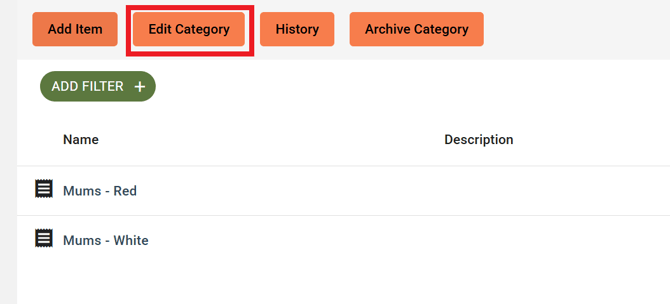
If you have existing categories, edit the category by clicking into the Category name and click "Edit Category".
Step 4
Enter your Commission Rates:
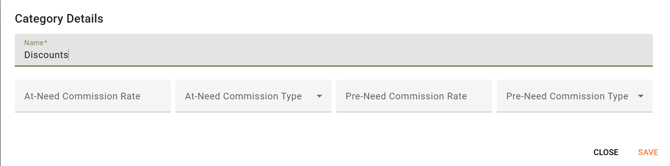
At-Need/Pre-Need Commission Rate: Commission amount for selling this item in an At-Need or Pre-Need contract.
At-Need/Pre-Need Commission Type: Whether the commission is a Flat amount, or a Percentage of the item total.
Adding Commission Rates to a Line Item
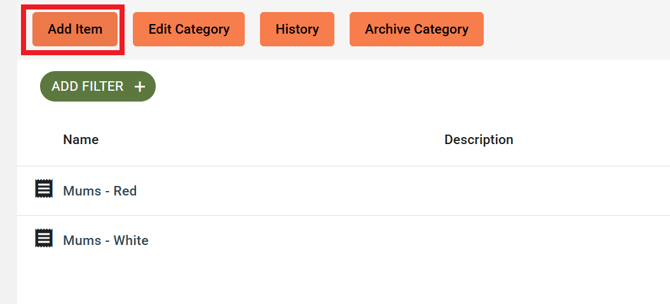
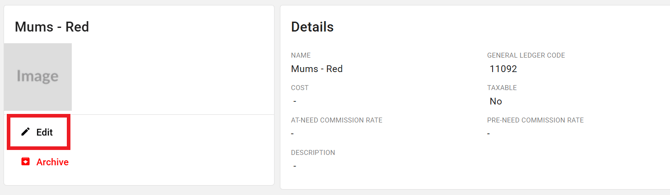
For Individual Line Items, select "Add Item" for a new item, or, select the existing Line Item and select "Edit" to add the Commission Rate to the Line item:
Tracking Commissions
To run a report and track commissions, visit the Reports tab and select the Commissions by Sales Counselor report.