
In This Article...
You'll learn how to search for locations, find property that's available for sale, and open, map, or export your results. Watch a short walkthrough, or jump to the section you need below.
Search for a Location
- In the left-side menu, hover over Locations and select Search Locations.
- Choose your search criteria, such as a Section or Status. For more options, such as Property Type, select + MORE in the upper right corner.
- Select the orange SEARCH button.
The results list each space, with its location, deceased, and basic ownership information.
Find Available Property
To see every space you can sell, set Status to For Sale, and then select SEARCH. Add a Section or Property Type to narrow the list.
💡 Tip: To find available property near where you're standing, use Properties Near Me in Map Tools. (See How to Search for Properties Near You.)
Work With Your Results
Once you have your search results, you can:
- Open a location: Select the name in the Location column.
- Open a space or interment right: Select the space or interment right number.
- Open a deceased record: Select the person's name under the Status column.
- View documents: Select the folder icon. (See How to Add, View, and Delete Documents.)
- View a section map: Select the mapping icon. The map opens with the location details on the left.
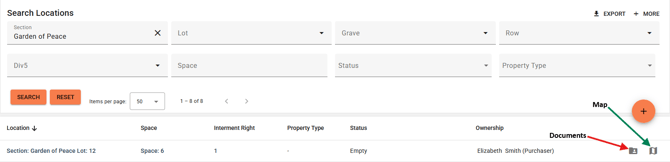
- Export: Select EXPORT, and then select All Results (CSV) to download the results as a spreadsheet.