
The Religion field is a drop down menu in the Demographics section of every deceased record. It lets you record the faith or religious affiliation of the person buried in your cemetery.
You build your own list of religions, so the menu only shows the options that make sense for your cemetery. For example:
- A cemetery with a Catholic section can record “Catholic” so staff know which burials follow Catholic customs and blessings.
- A community cemetery with a Jewish section can mark decedents as “Jewish” to keep track of burials that follow Jewish traditions.
- A cemetery that serves many faiths can add each one (Baptist, Lutheran, Muslim, Methodist, and so on) to keep complete, consistent records for families and genealogy requests.
You only need to add a religion to the menu once. After that, it is available on every deceased record.
Step 1
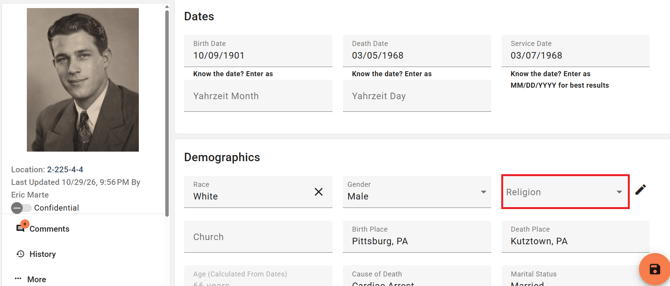
In the deceased record, scroll down to the Demographics section and find the Religion field. If you need help finding a record, see How to Search by Deceased Record.
Step 2
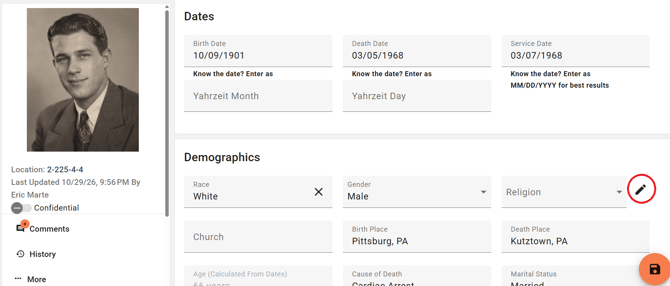
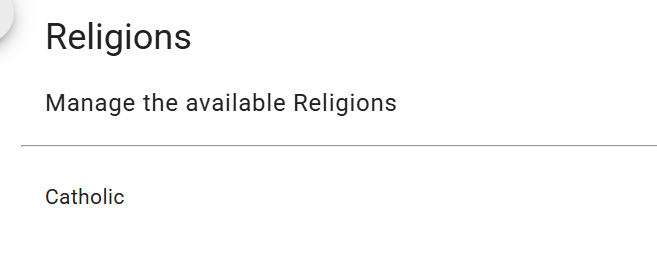
Click the pencil icon next to the Religion field. This opens the list of religions for your cemetery.
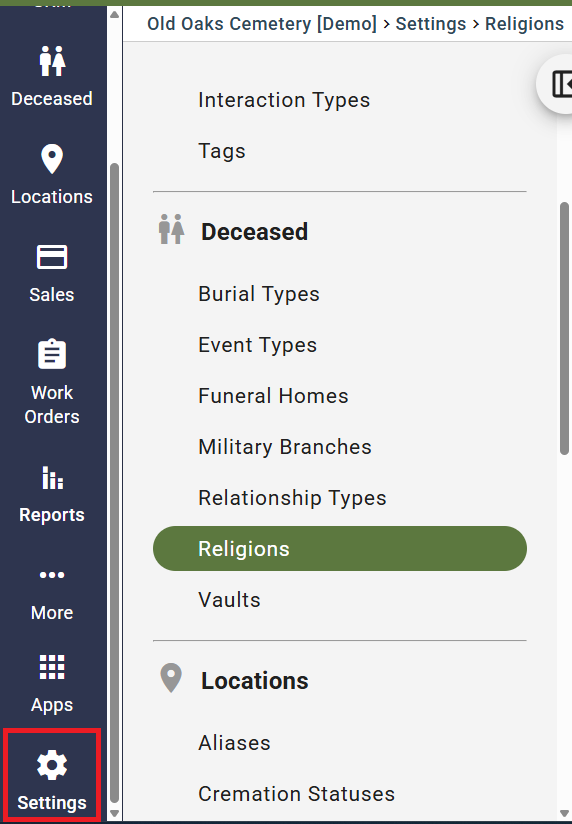
Alternatively, you can go to Settings > Religions under the Deceased category.
Step 3
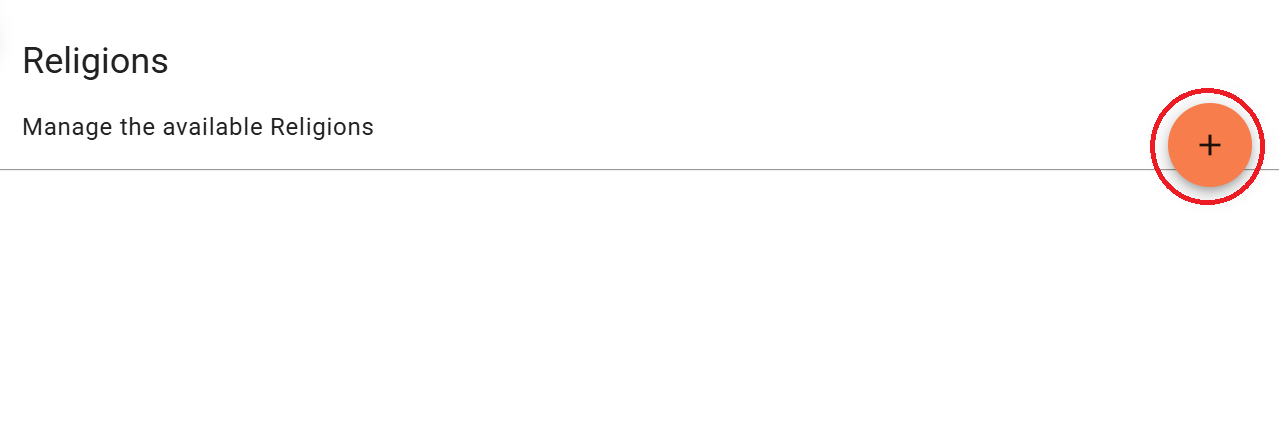
Select the Orange "+" button to add a Religion.
Step 4
Type the name of the religion you want to add in the pop up window, then save it. Repeat this step for every religion you want to include in the menu.
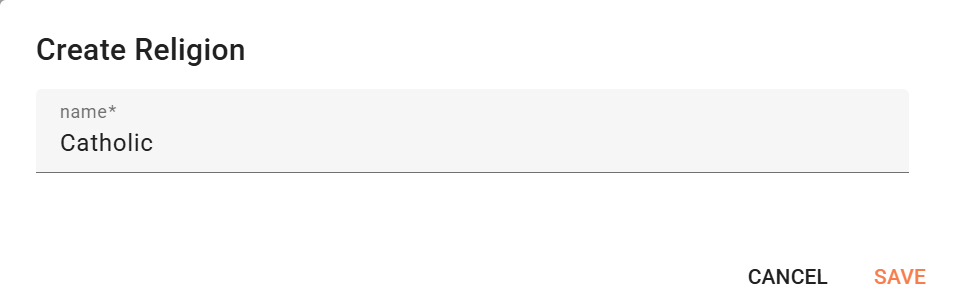
Your Religion will now be saved and can be added to any deceased record.
Step 5
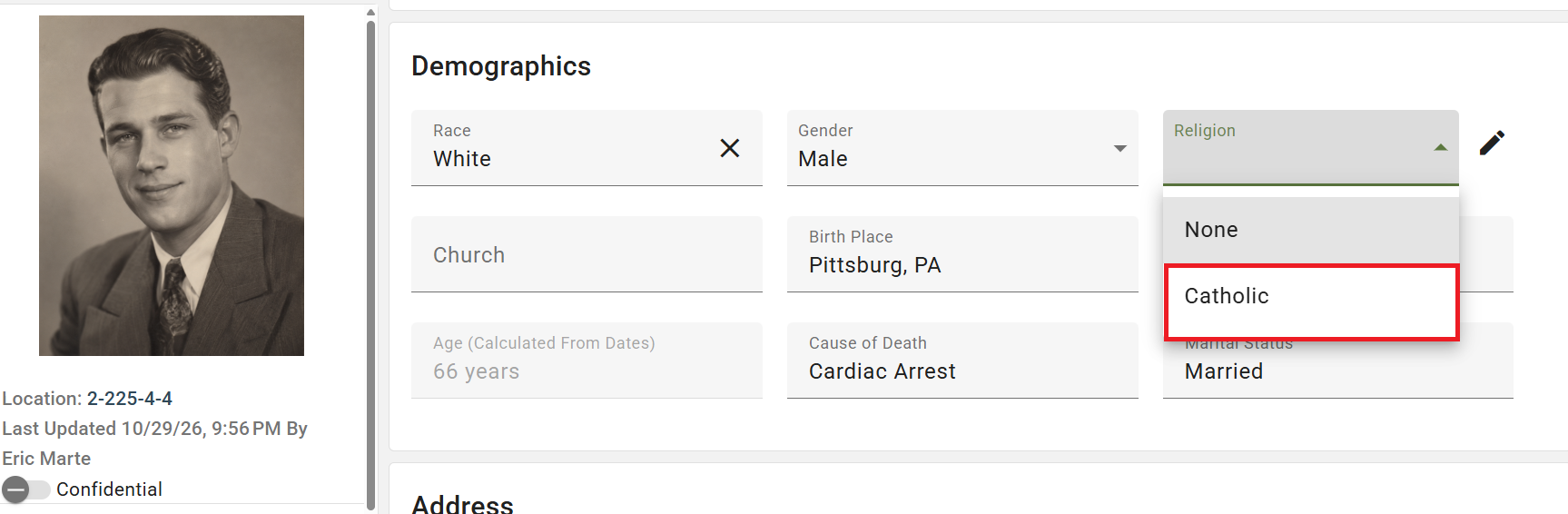
Go back to the deceased record. Click the Religion drop down and choose the religion that applies to this person.
Step 6
Make sure to save any edits to the deceased record by clicking the Orange Floppy Disk button on the bottom right.