
In This Article...
You’ll learn how to add a memorial, link it to more than one grave, enter its details, and delete it.
Add a Memorial
There are two ways to add a memorial:
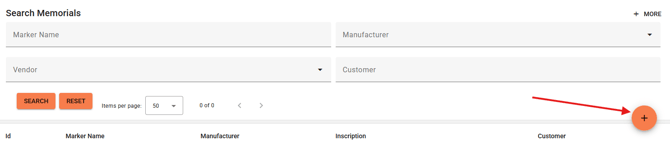
- From the Memorials page: In the left-side menu, hover over Locations and select Memorials. Select the orange + button. You can add a location on this screen under Spaces, or leave it blank and add one later.
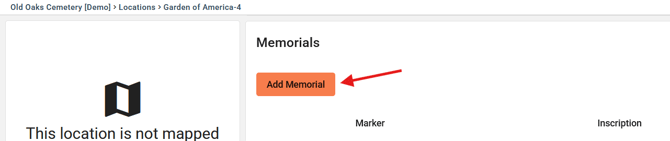
- From a location: Open the location you want to add a memorial to. Scroll down to Memorials and select Add Memorial.
Add a Memorial to Multiple Graves
You can link one memorial to several graves, such as a family monument or double headstone.
- On the memorial, scroll to Spaces and select ADD SPACE.
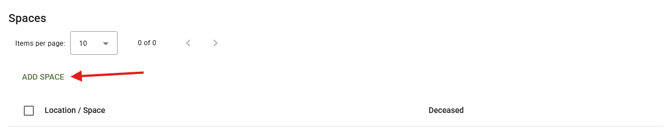
- Select the checkbox beside each grave you want to link. You can select every grave in the location or only some.
- Select ADD.
The linked graves appear under Spaces on the memorial.
Enter Memorial Details
- Select Edit Details/Size/Order, enter the details, and then select SAVE.
- Select Edit Foundation, enter the foundation information, and then select SAVE.
-
Select ...More on the memorial to change the customer or vendor, add a comment, or edit the memorial's map location.
To add photos, see How to Add and Manage Memorial Photos.
Delete a Memorial
⛔ Warning: Deleting a memorial removes it from every location it’s linked to. This can’t be undone.
- Open the memorial by selecting its number or title. If you know the memorial's number, you can search for it directly.
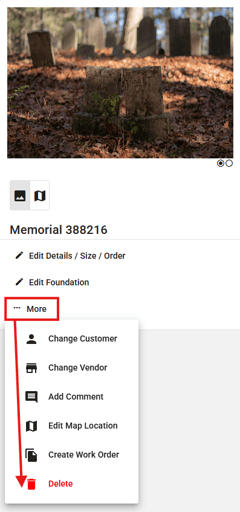
- Select ...More on the left side underneath the image box, and then select Delete.
- Select YES to confirm.
The memorial is deleted.